

Introducing GenTap 1.0
Nine guided creations, custom PixelLab workflows and local image and GIF exports.
Stream Deck plugin · Powered by PixelLab
Turn photos into characters, drawings into GIFs and trips into comics.
Nine guided creations, custom PixelLab workflows and local image and GIF exports.
Choose a feature to see what goes in and what GenTap makes. Each result below is an actual image or GIF exported by the feature.
All people in these examples are fictional and AI-generated. No real people’s photographs are used.
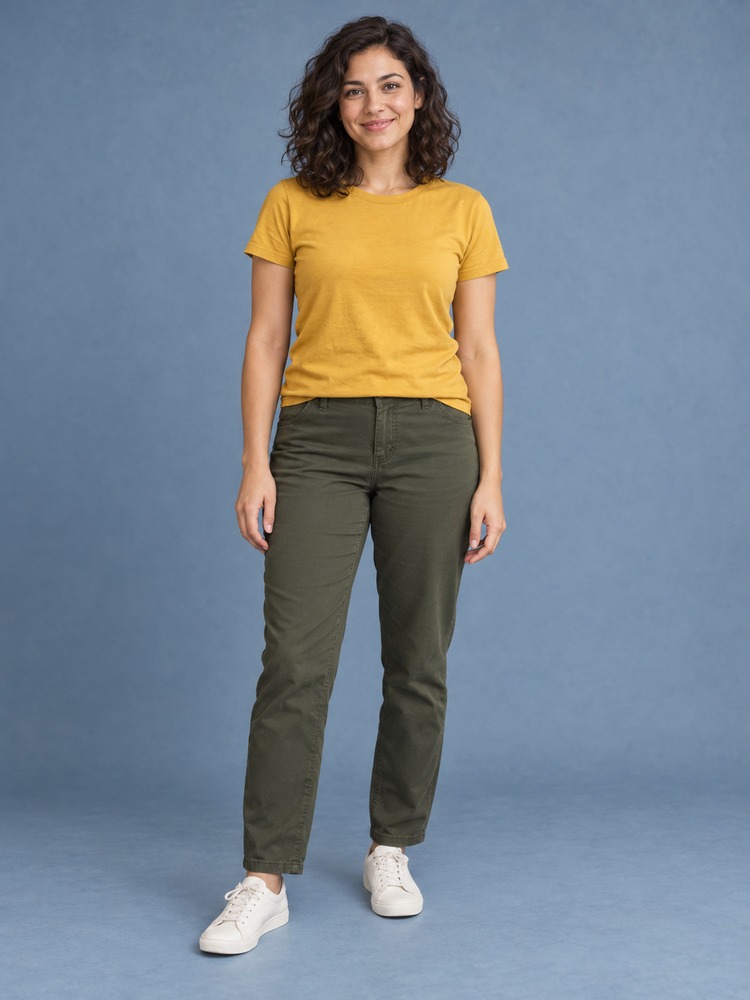
Turn a portrait into a pixel character, then animate it.

The animation could not load. Please try again.
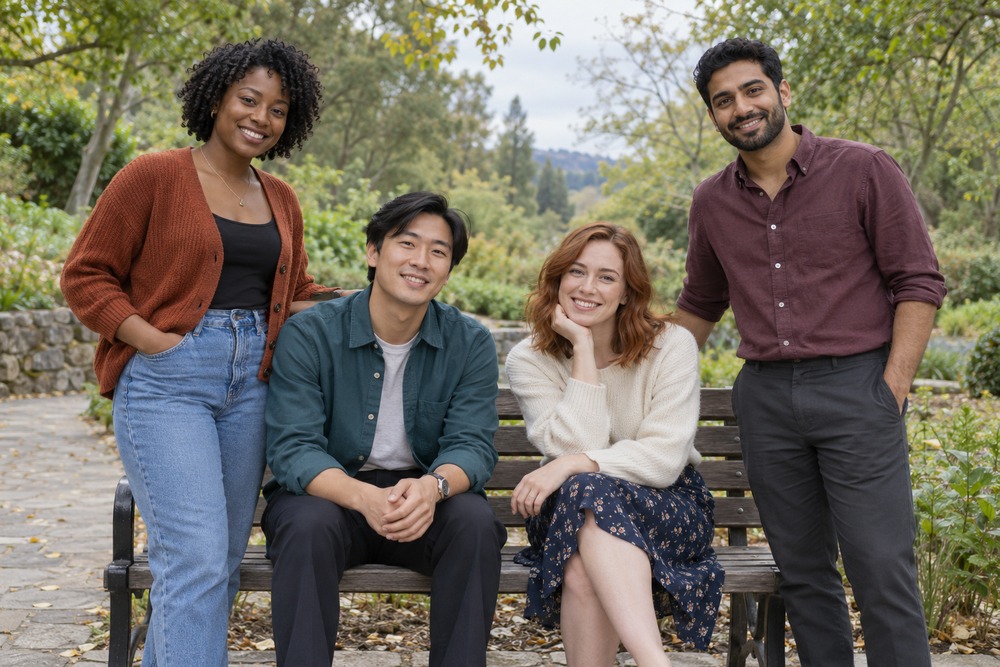
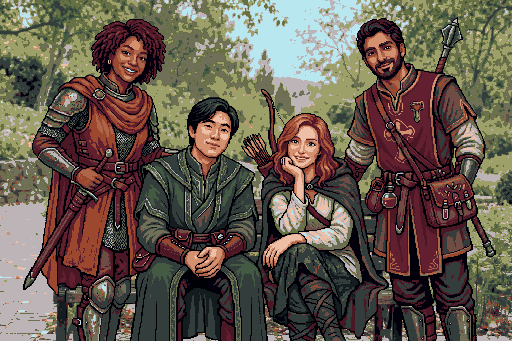
Turn the people in a group photo into an RPG party in one shared scene.
The animation could not load. Please try again.
Choose 2–6 photos, add your captions and get an illustrated page.
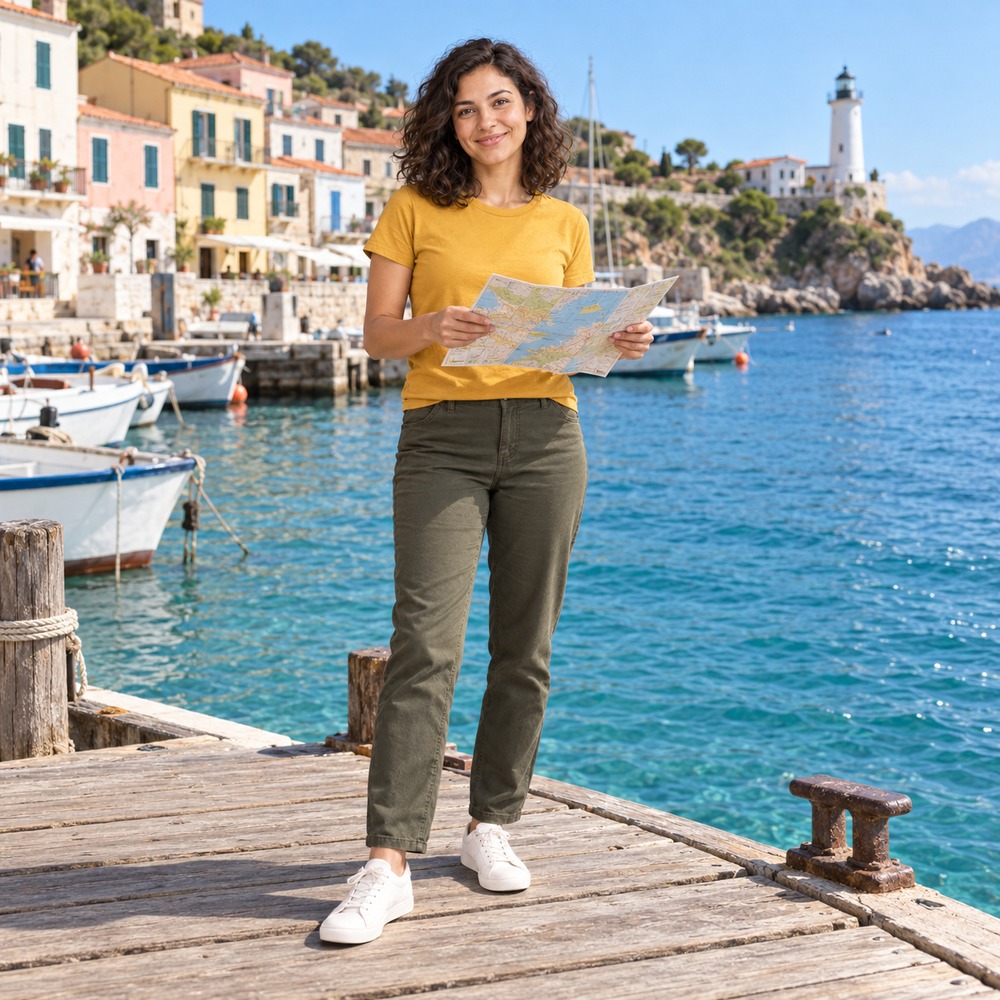
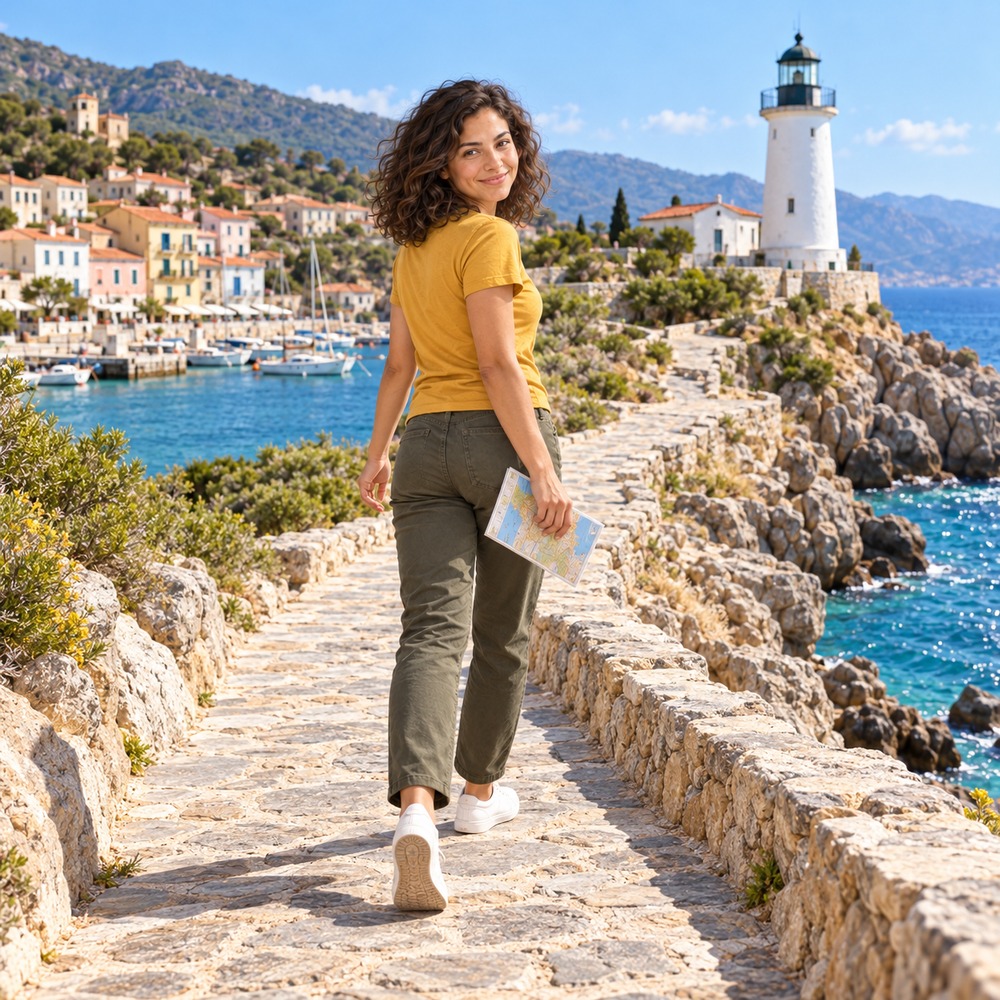
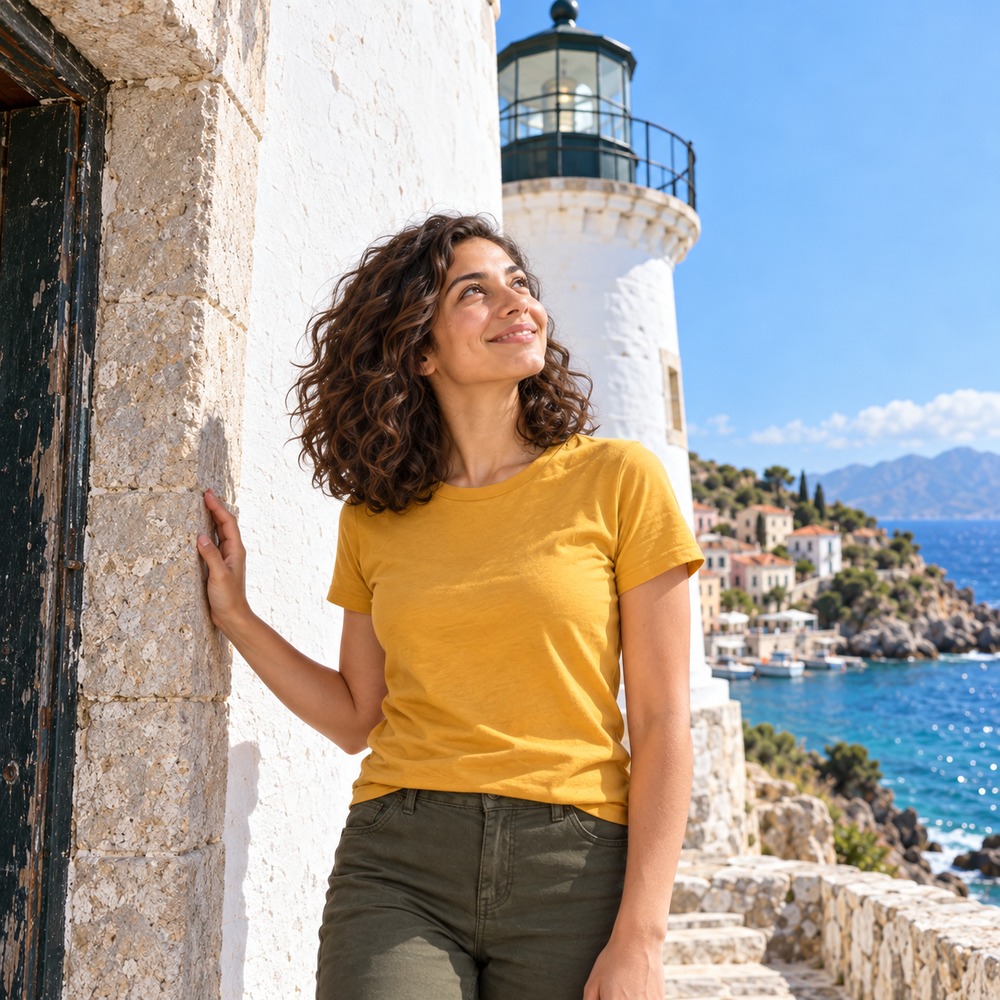
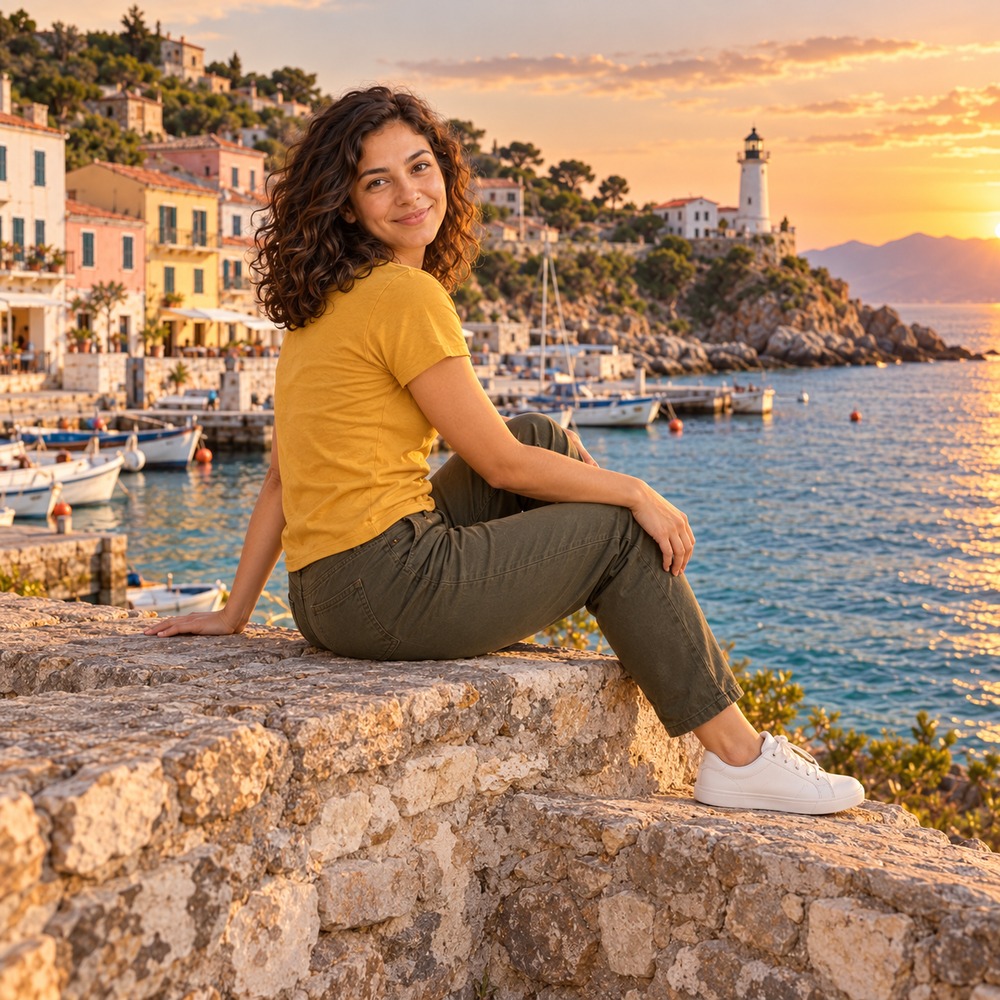
Title & captions
The lighthouse walk · A plan by the harbour / Following the coast / Made it to the lighthouse / One last look before home
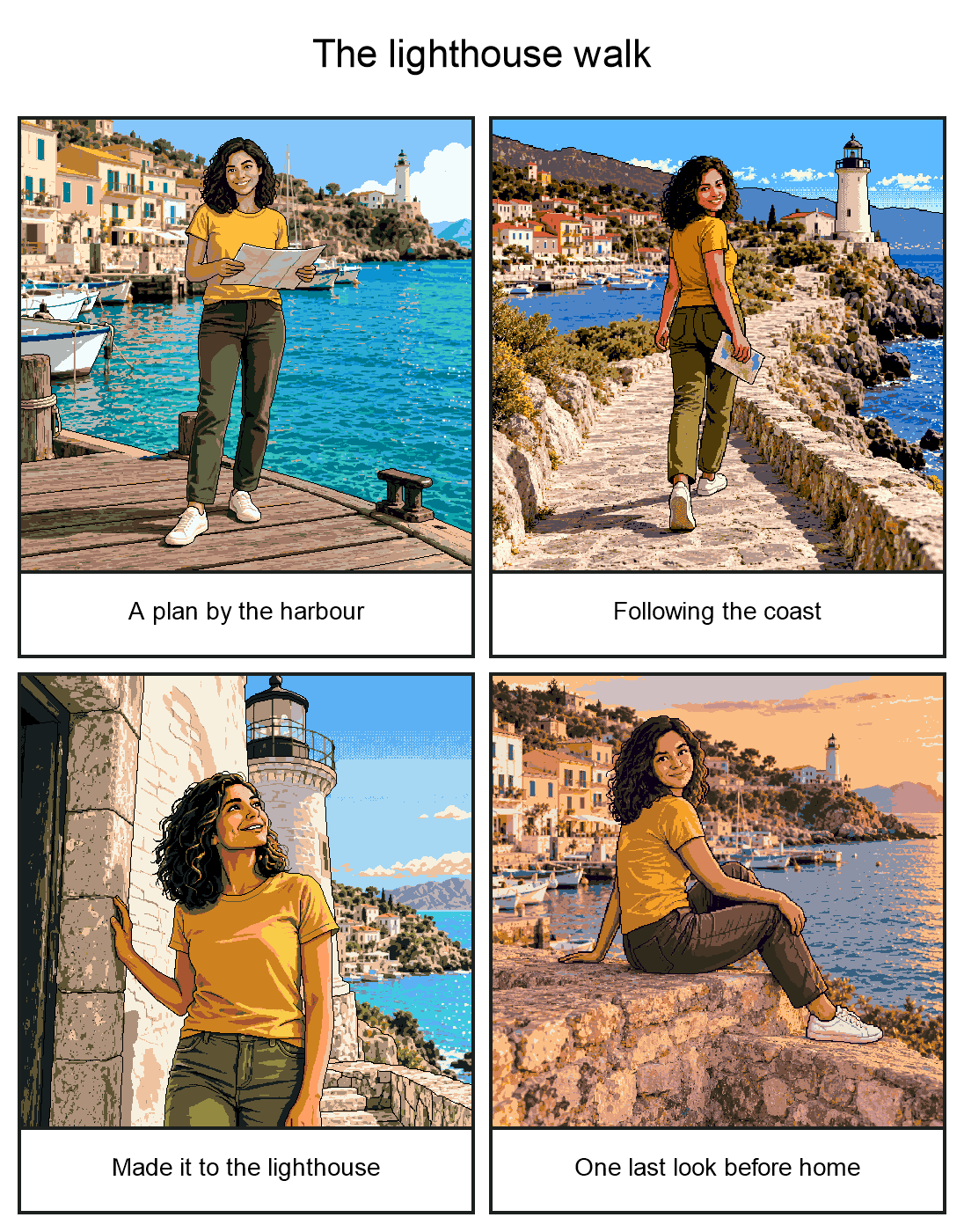
The animation could not load. Please try again.
Turn your animal's photo or artwork into an animated character. Movement is chosen automatically from its pose and body language. Add a caption if you like.
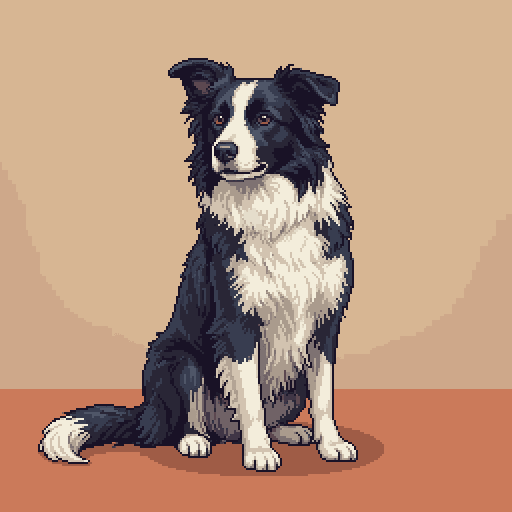
The animation could not load. Please try again.
Turn a drawing into pixel art, then animate the character you imagined.


The animation could not load. Please try again.
Create a pixel birthday scene starring the person in your portrait. Add a greeting if you like.
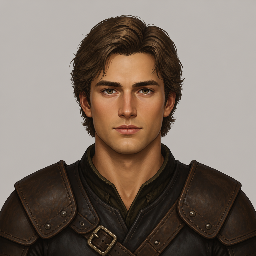

The animation could not load. Please try again.
Supply a portrait and a GIF. Recreate its action with your pixel character.

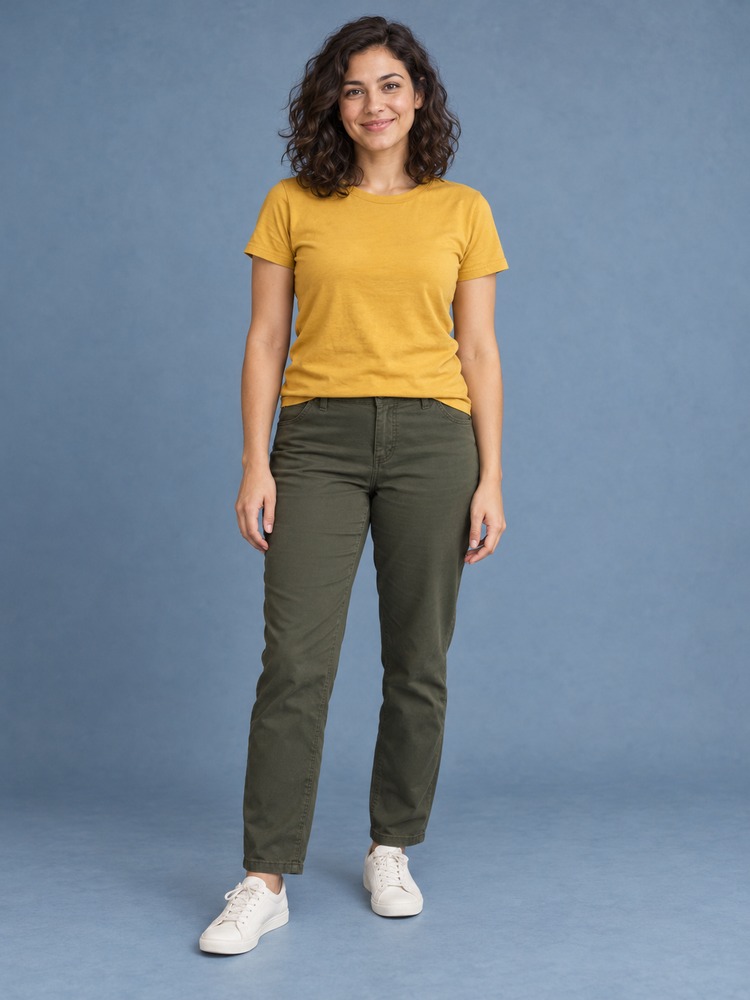

The animation could not load. Please try again.
Choose a starting image and an ending image, then animate the change. These examples use a smoke reveal.


The animation could not load. Please try again.
Turn your logo into a bouncing animated intro.
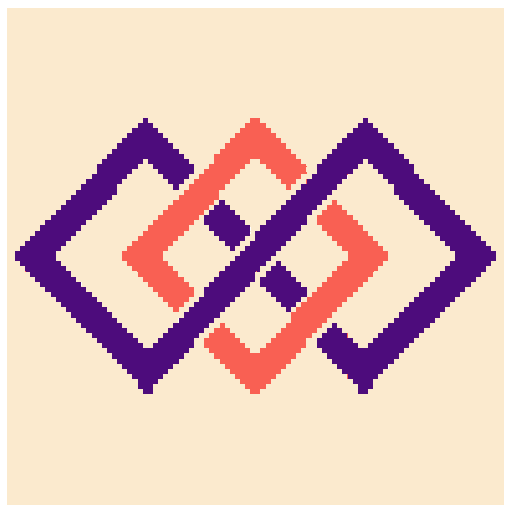

The animation could not load. Please try again.
PixelLab generation is billed separately. Examples show individual results; likeness, fine details and movement can vary. These examples animate only when you choose Play.
Six actions, each with its own purpose. Assign one to a key and save its settings for next time.
A new image from an idea.
Copy a text prompt to generate a still image. Copy a picture to describe it first, review that description, then generate a new image.
Copied text → image
Copied picture → description → new image
Choose a generator, image size and prompt preset. To change the actual pixels of an existing picture, choose Image Workflow.
An animation from your artwork.
Animate a still image, put your character into a GIF, animate a logo or make a transition between two pictures. Choose the effect and supply its inputs.
Image or GIF → animated GIF
Use this for a finished animation without arranging the individual steps. Creative Studio adds project-specific steps such as turning a pet photo into a character and adding a caption.
A character you can return to.
Create a character saved in your PixelLab account. Reuse it across keys, add poses and animations, and export its views or frames.
Description or reference → saved character
Use the library when you want to keep working with the same character. Export here directly, or send its rotations into Collection Workflow for further edits.
A complete photo or drawing project.
Bring animals and drawings to life, or make photo comics, group scenes and greetings. Each recipe runs the required steps and assembles the result.
Photos or drawings → image or GIF
Choose a project instead of building a workflow. Add captions or arrange comic panels where the recipe offers them. For animation effects on artwork you already have, use Animation Studio.
Your own steps on one image.
Choose operations and their order. For example: remove the background, reduce the colours, then resize. Save one final result.
One image → your steps → image or GIF
Convert to pixel art, correct or edit it, resize and more. Animation can be the final step when you want to prepare an image before animating it.
A set of images or animation frames.
Create frames, rotations or variations, then edit the set together. Save separate, numbered files in their original order.
Source or saved rotations → image files
Use Character Library to manage a saved character; use this action to process its exported rotations as a set. It also creates new sets from a source image.
Drag the action onto a key in Stream Deck, then select that key to open its settings.
In Setup, save your PixelLab API key and allow clipboard content to be sent. In Output, choose where your images go.
Review the prompt, follow the status in the settings panel, then open the saved image from your folder.
Input comes from your clipboard. Copy the text you want to use before pressing the key.
PixelLab generates the artwork. The plugin runs the steps and saves your files.
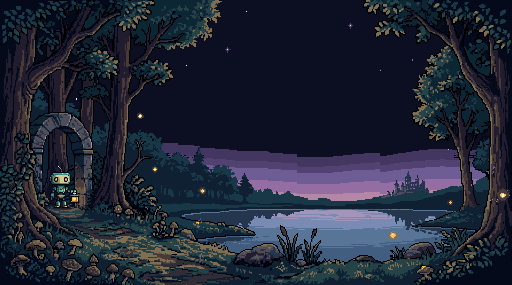
Describe the scene, colours and composition. Generate an image and save it to your chosen folder.
A quiet forest clearing at dusk. A mossy path, an old stone arch, a lake and a distant castle. Dark navy and forest teal, amber fireflies and a violet sunset.
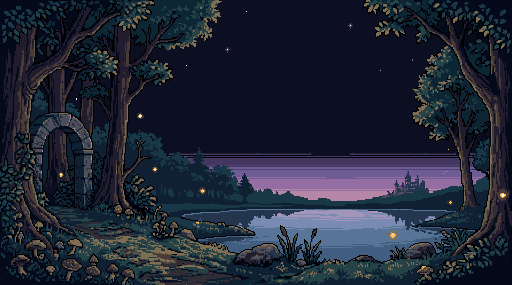
Demonstration assembled from a saved PixelLab output. The reveal is edited; it does not show generation speed.
Images, GIFs, frames and spritesheets go to your chosen folder. Optional generation records keep the prompt, settings and available seed alongside them.
Each key keeps its own configuration, so you can return to a favourite operation. Generation records are for reference; they cannot be imported to rerun a workflow.
GenTap is coming soon to Elgato Marketplace. PixelLab generation is billed separately.
Building your own integration? Read about the four reusable packages.


